From Prompt to MVP: Why AI Coding Sessions Need Replay
An interactive replay makes AI coding sessions searchable: prompts, tool calls, abandoned paths, and the final result in one self-contained view.
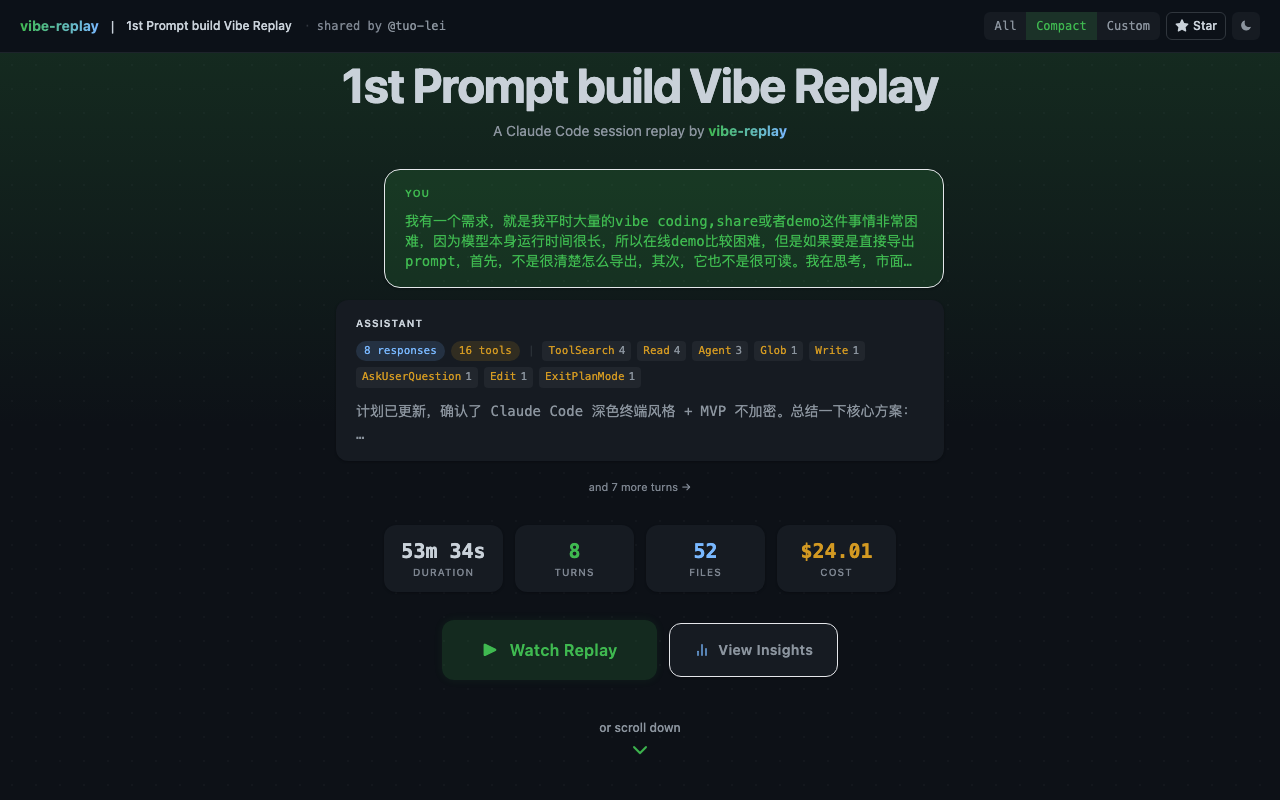
An interactive replay is not a screen recording. You can drag the timeline, jump to any point, and inspect prompts, assistant turns, tool calls, and file changes in context. The screenshots in this post use synthetic demo data.
The product is designed around the same question: what happened between the first prompt and the final diff? vibe-replay turns that process into a searchable, navigable artifact instead of asking readers to reconstruct it from terminal logs.
Why vibe coding needs a replay tool
Vibe coding has an overlooked problem: the process is invisible.
You spend two hours with Claude Code building a feature. The resulting PR diff shows what changed — but your prompts, the AI’s reasoning, the abandoned approaches, the debugging — all of it is gone.
Screen recordings are too heavy (nobody watches 90 minutes of terminal footage). Raw JSONL logs are unreadable. Screenshots lose context.
The useful alternative is a replay that compresses a full AI coding session into a few minutes of interactive animation. Like watching at 10x speed, but with the ability to drag, search, and jump to any moment.
Three turning points in a useful replay
The clearest replays usually surface three turning points.
1. Start with a product vision, not a coding instruction
“Build a small replay viewer for an AI coding session. Before writing code, compare the existing options and propose the smallest useful architecture.”
This is a product vision, not just “write me a function.” A useful agent workflow starts by clarifying the audience, checking existing options, and proposing an architecture before it edits files.
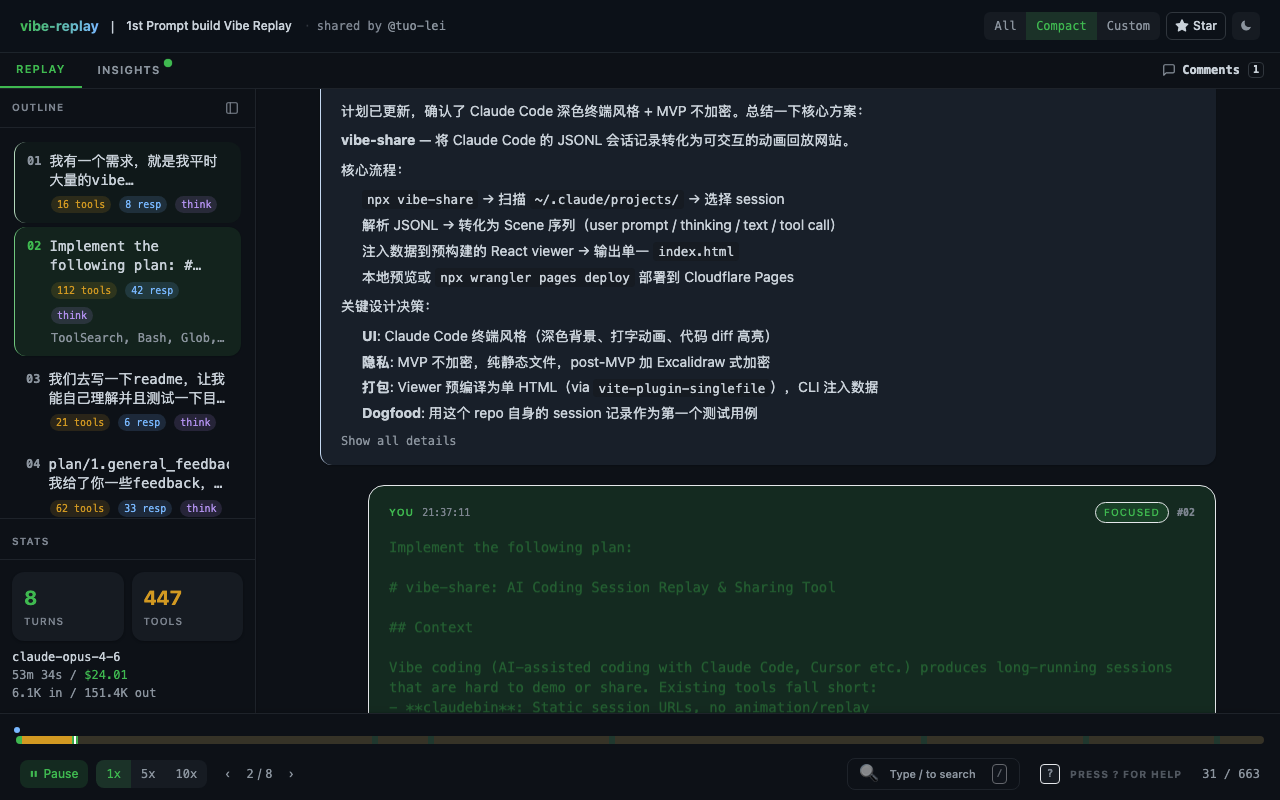
2. Know when to pause the implementation
“Pause implementation and show the competing tools, their trade-offs, and what would make this approach distinct.”
When an agent jumps straight to implementation, a checkpoint prompt can pull it back: validate the problem, then keep investing. A replay makes that steering moment visible instead of flattening it into a final diff.
This is a crucial pattern in vibe coding: AI’s execution speed is a double-edged sword. The human’s most important role isn’t writing code — it’s steering direction.
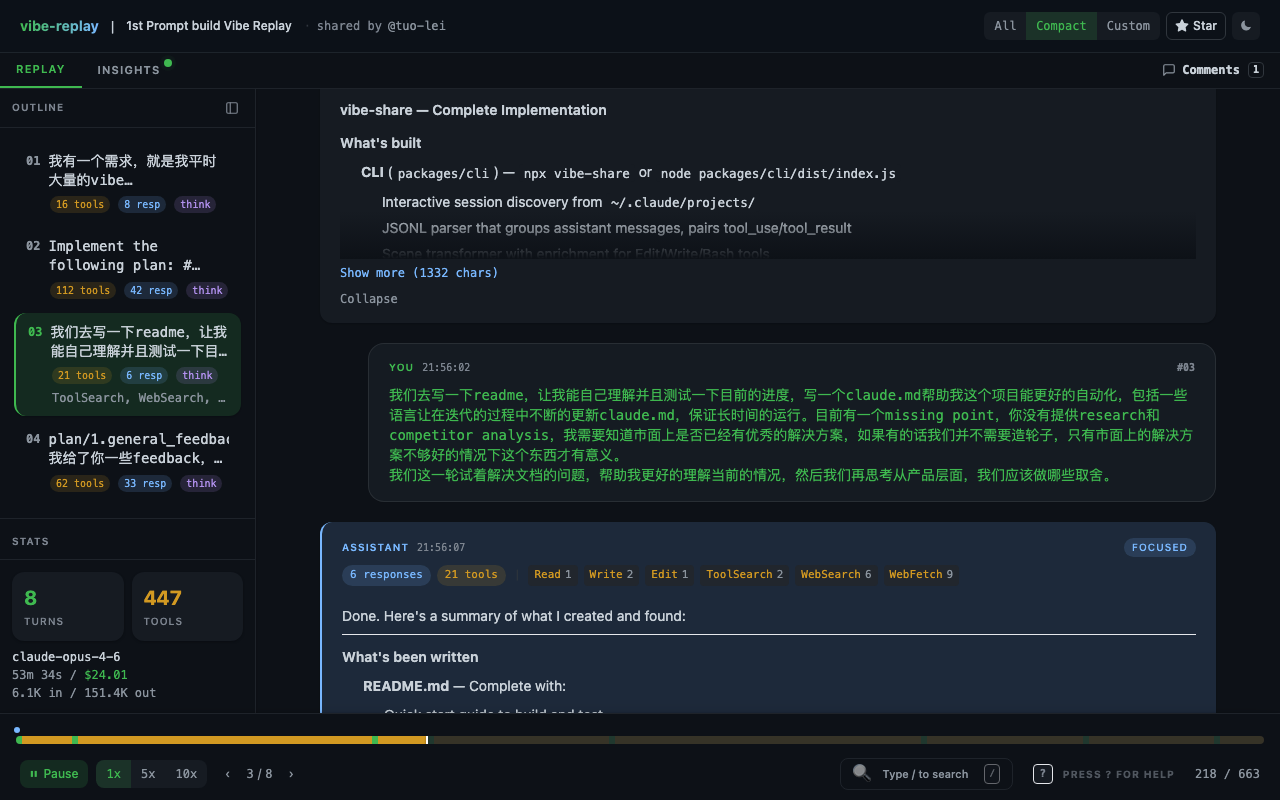
3. Batch UX decisions, then let the agent execute
1. Keep playback controls visible. 2. Make speed and keyboard behavior predictable. 3. Collapse long blocks without hiding their meaning. 4. Separate user, assistant, and tool activity clearly.
One well-scoped UX brief can drive changes across many files. This is the useful division of labor: humans make product decisions, AI handles implementation, and the replay makes the trade-offs auditable.
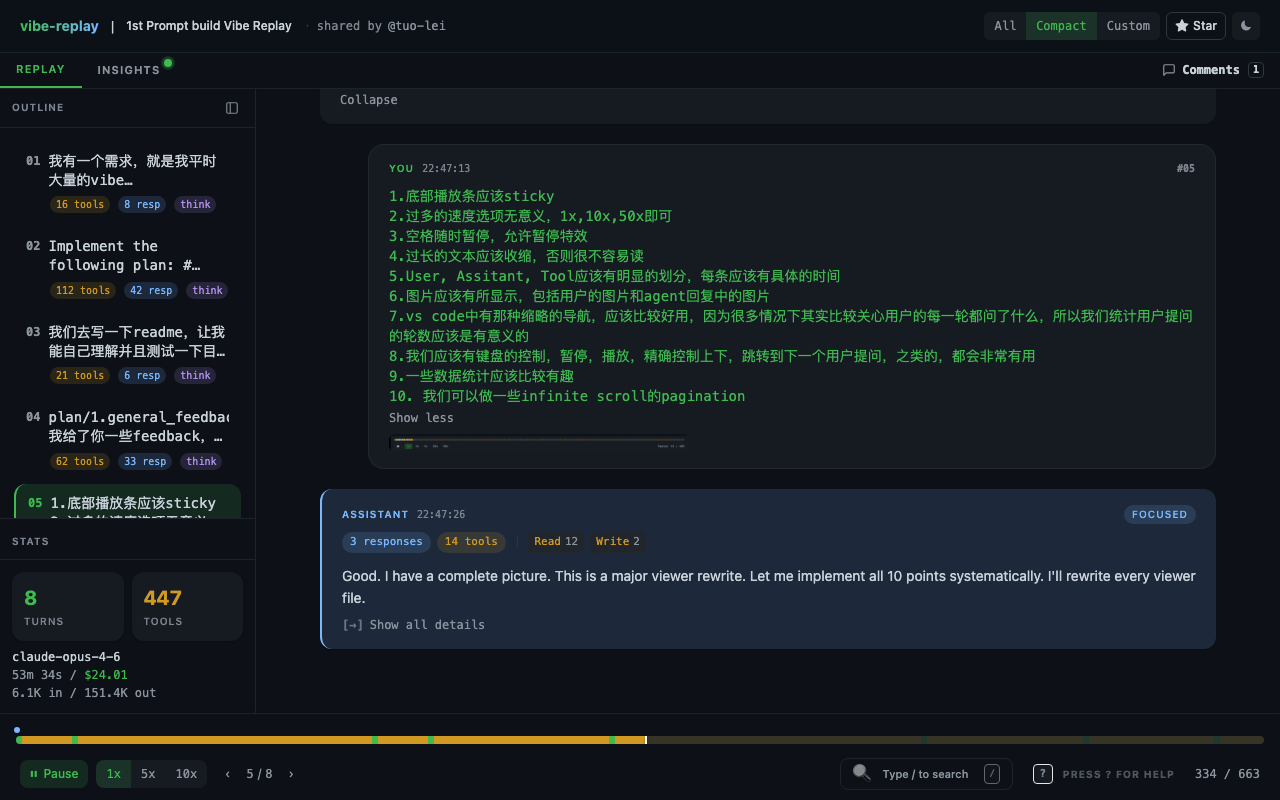
What a replay lets you measure
| User prompts | How the task was directed |
| Tool calls | What the agent actually executed |
| Turn timing | Where work sped up, stalled, or retried |
| Token and cache usage | How provider accounting changed over time |
| File edits and tests | What changed and how it was verified |
Cost is intentionally not presented as a universal productivity score. Provider pricing, cache coverage, subscription terms, and missing usage records can all change the interpretation. Use the metrics to understand a workflow, not to imply that one session predicts an engineer’s output.
Try vibe-replay on your own AI coding sessions
npx vibe-replayOne command. It discovers sessions from supported local providers, lets you pick one, and generates an interactive replay.
The output is a single self-contained HTML file. No server or account is required for local use, and it makes no automatic external requests. Remote images load only after an explicit click. Open it in any browser, share it anywhere. Or sign in and share it to the cloud.